Hướng Dẫn Kiểm Tra Tốc Độ Wifi
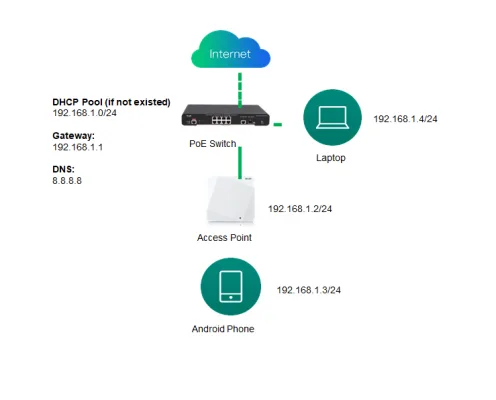
1. Test Topology:
2. Hardware preparation:
One Ruijie AP and Gigabit PoE Switch
One Android Phone (support at least 2*2 spatial stream and 802.11ac)
One Laptop with Gigabit NIC
3. Software preparation:
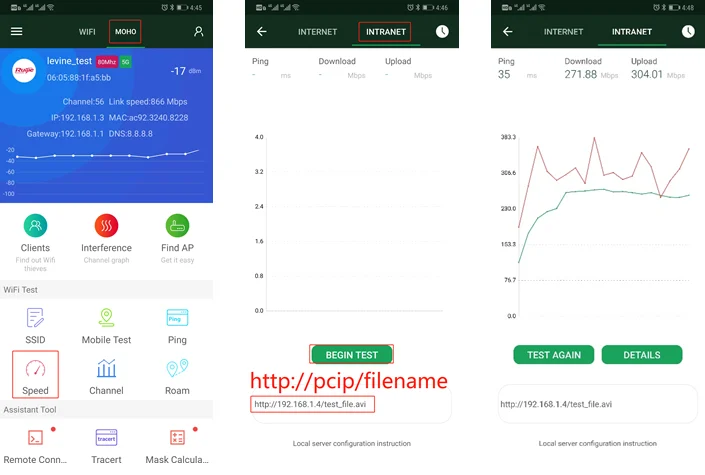
WIFI Moho Installed on Android Phone (Download from Google app store)
HFS Installed on Laptop(Download via the following link: http://www.rejetto.com/hfs/?f=dl)
4. Connect the AP to Ruijie Cloud
Refer to the following video for AP quick provisioning : https://www.ruijienetworks.com/support/video-1710
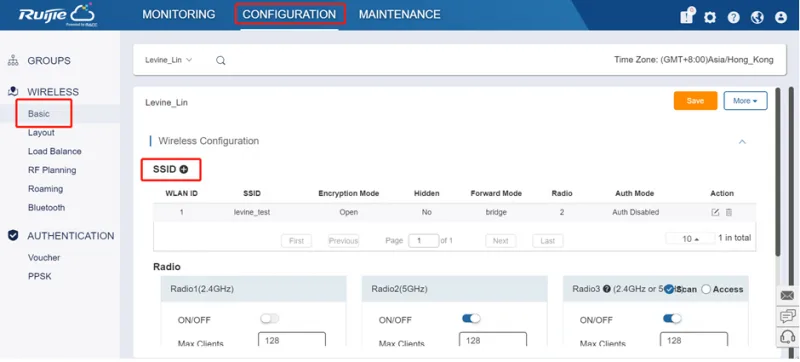
Step 1. Create a new group and SSID
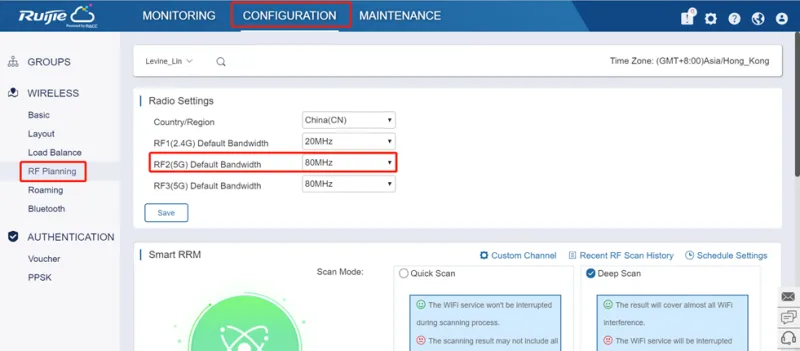
Step 2. Change the bandwidth to 80MHz.
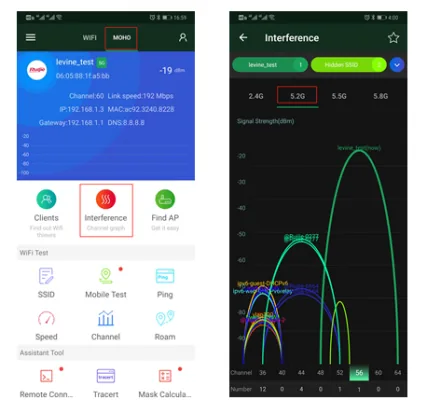
Step 3. Find an idle channel via WIFI Moho.
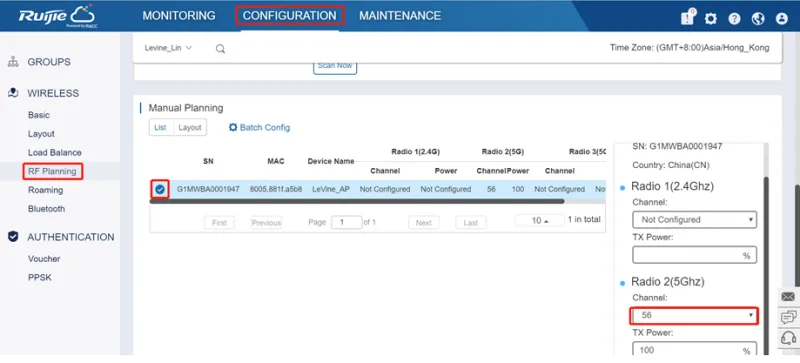
Step 4. Configure the channel and set TX power to100%.
Step 5. Connect the phone to 5G signal and test the connectivity between laptop and phone.
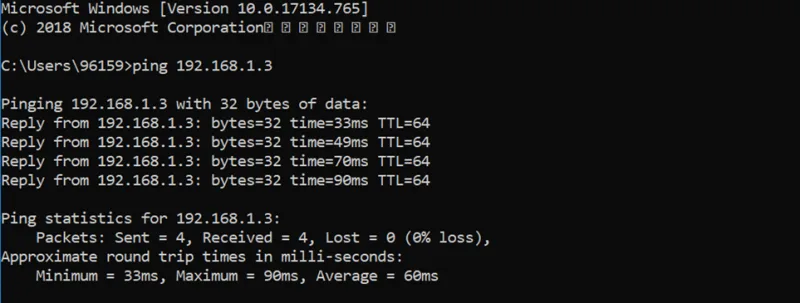
Tóm tắt: Kiểm tra tốc độ WiFi của AP Ruijie cần một AP và switch PoE Gigabit, điện thoại Android hỗ trợ 802.11ac 2×2, laptop card mạng Gigabit, ứng dụng WiFi Moho và phần mềm HFS. Các bước gồm tạo nhóm và SSID trên Ruijie Cloud, đặt băng thông 80MHz, chọn kênh trống, kết nối sóng 5GHz rồi chạy thử tốc độ mạng nội bộ.
Step 6. Install HFS on laptop and upload the test file. (the file size should be larger then 100M)
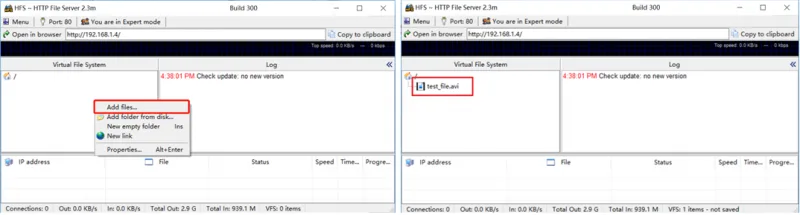
Step 7. Begin intranet wireless speed test
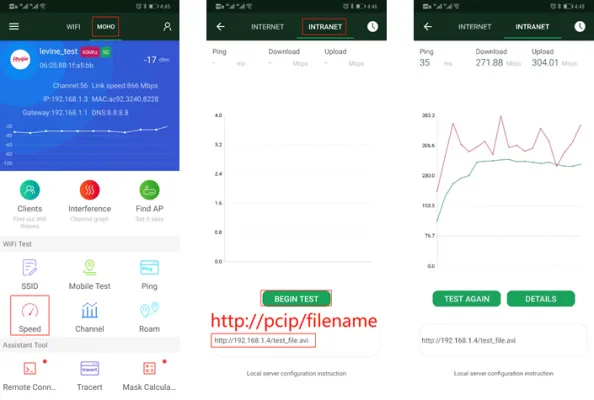
In some PoC scenario, we may just replace the existing other vendor’s AP with Ruijie’s(using the same cabling infrastructure), then compare the performance between existing AP and Ruijie AP via MOHO intranet speed test.
Multi-point test is also suggested: we may use multiple phone (>10 terminals) to run the above MOHO speed test at the same time.
Thông tin liên hệ:
- CÔNG TY TNHH ĐẦU TƯ CÔNG NGHỆ TRƯỜNG THỊNH
- Địa chỉ: 14 Trịnh Lỗi, P. Phú Thọ Hoà, TP. Hồ Chí Minh
- Điện thoại: (028) 38 101 698 – 0888 319 798
- Email: truongthinhtelecom@gmail.com
- Website: https://truongthinhtelecom.com/
Thiết bị liên quan: Thiết bị WiFi · Switch mạng. Gửi nhu cầu hoặc hình ảnh khu vực cần lắp — Trường Thịnh Telecom tư vấn phương án và báo giá phù hợp.